Bill of Materials - Component Item Replacement
Function
Searches for components in a bill, or bills, that you want to replace with another component. Entering an effective date makes the “old item” obsolete as of the effective date and creates a new line item for the new item. All quantities of the component will remain the same for the new item with the exception of the effective date.
The Materials Detail grid for the bill will reflect all components of a bill, regardless of whether they may have been replaced. To see current components only, print a hard copy of the bill.
To access this task...
Select Component Item Replacement from the Inquiry and Maintenance menu.
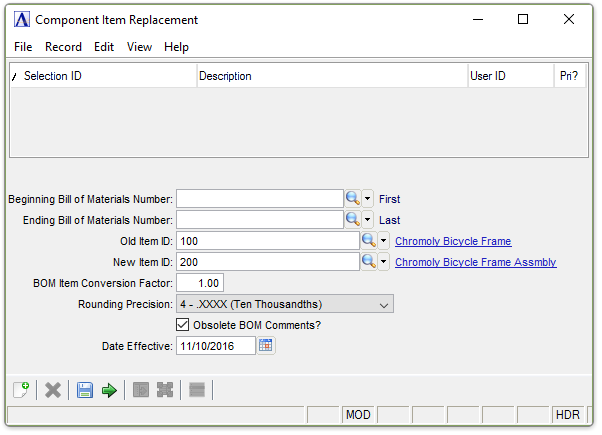
Component Item Replacement
About the Fields
In the Beginning/Ending Bill of Materials Number field...
-
Enter the first/last bill number to have a component replaced.
-
Click
 to display all valid BOM numbers.
 -
Press Tab or Enter to select the first/last bill number on file.
-
Click
 to open the master record for the code entered.
In the Old Item ID field...
-
Enter the old item that is to be replaced.
-
Click the Click
to display all valid item ID codes.
In the New Item ID field...
-
Enter the new item that will replace the old item.
-
Click the Click
to display all valid operation codes.
In the BOM Item Conversion Factor field...
-
Enter the number of new items it will take to replace an equal amount of the old item.
From the Rounding Precision dropdown..
-
Select rounding from the dropdown list:
0 – Whole numbers
1 – X (Tenths)
2 – XX (Hundredths)
3 – XXX (Thousandths)
4 – XXXX (Ten Thousandths)
NOTE:
The default is created in the Parameter Maintenance task.
Obsolete BOM Comments? checkbox...
-
Mark the box to make the associated comments obsolete. The default is checked
-
Unmark the box to ignore the comments.
In the Effective Date field...
-
Enter the effective date for the new item. This becomes the obsolete date for the old item.
-
Press Tab or Enter to accept the default of today’s date.
-
Click
 to select a date using the calendar tool.
When finished making entries to the fields...
-
Click
 to clear the form and begin again.
-
Click
 to save the report settings.
-
Click
 to process the report.