Accounts Receivable - Generate Finance Charges
Function
The Generate Finance Charge task automatically creates finance charge invoices for customers based on days overdue, invoice amount, finance charge rate and minimum finance charge amount. This is the first step of applying finance charges to customer accounts, followed by the printing of the Finance Charge Register and the update. Finance charges for individual customers may also be entered or modified using the Finance Charge Entry task.
To access this task...
Select Generate Finance Charges from the Period End Processing menu.
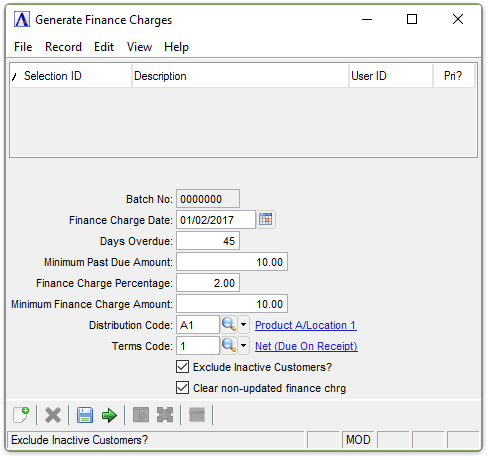
Generate Finance Charges
About the Fields
In the Batch No: field...
Display only.
In the Finance Charge Date field...
This date is the accounting date of the finance charge. The due date and days overdue are calculated using this date as a base and the assigned terms code
-
Enter a date in mm/dd/yyyy format.
-
Click
 to enter a valid date.
In the Days Overdue field...
The days overdue are calculated from the finance charge date entered in the Date field. Open invoices dated on or before this date are considered for finance charges.
-
Enter the number of days that an invoice must be overdue in order to have finance charges applied.
Example
When the finance charge date is 12/30/04 and the days overdue is 60, only open invoices with due dates on or before 10/31/04 are considered for finance charge calculation.
In the Minimum Past Due Amount field...
-
Enter the minimum dollar amount for an invoice to be considered for finance charge calculation.
Example
Enter 10.00 to consider invoices which are $10.00 or greater for finance charges.
In the Finance Charge Percentage field...
-
Enter the percentage rate to be used in finance charge calculation.
This is the percentage rate that applies to this particular application of the finance charge.
Example
Enter 1.25 to calculate finance charges of 1.25% (.0125). When an overdue invoice is $150 and the finance charge percent is 1.25, the amount of the finance charge is $1.88.
In the Minimum Finance Charge Amount field...
When a calculated finance charge is smaller than this amount, it is replaced with the minimum finance charge amount. In other words, whenever a finance charge is applied, it is this amount or greater.
-
Enter the smallest finance charge amount that is to be applied to an invoice.
Example
Enter a Minimum Finance Charge Amount of $1.00 to apply at least a $1.00 finance charge to all eligible invoices.
In the Distribution Code field...
This code will determine the general ledger postings for the accounts receivable and finance charge revenue accounts, when selected as part of the update process.
-
Enter a valid general ledger distribution code.
-
Click
 to select
from a list of all valid distribution codes.
to select
from a list of all valid distribution codes.
In the Terms Code field...
This code will determine the due date of the finance charge based on the finance charge date.
-
Enter a valid terms code.
-
Click
to select
from a list of all valid terms codes.
Exclude Inactive Customers? checkbox...
-
Mark the box (default) to exclude inactive customers.
-
Unmark the box to include all customers.
Clear non-updated finance chrg checkbox...
-
Mark the box to clear previously created or entered finance charges that have not been updated from the Finance Charge Entry file.
-
Unmark the box to skip the clearing process.
When done making selections...
-
Click
 when all information is correct.
 -
Click
 to clear the form and begin again.
Attempting to leave an unsaved Generate Finance Charges by clicking the New button, the module issues this confirmation:
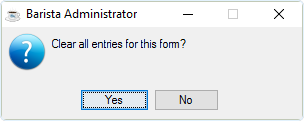
Clear all entries for this form?
-
Click Yes to clear the selections made in the Customer Comments Listing form.
-
Click No to return to the Customer Comments Listing form.
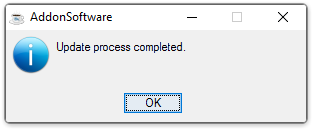
Update process completed.
Processing
The task will search through all open accounts receivable invoices. The invoice number being examined is displayed on the screen. When the invoice is overdue, the balance is checked for minimum size. If the balance is large enough, the finance charge amount is calculated. When the finance charge amount is large enough, a finance charge record is created.
NOTE:
Finance charges generated through this process may be modified or deleted using the Finance Charge Entry task prior to updating the Finance Charge Register.