Accounts Payable - Purchase Journal
Function
Use the Purchase Journal to list invoices entered and updated in the Accounts Payable module for a selected accounting period. The report can be produced in vendor number, distribution account or alternate sequence. When the General Ledger module is installed, there is an additional option to create a report by general ledger distribution.
To access this task...
Select Purchase Journal from the Period End Processing menu.
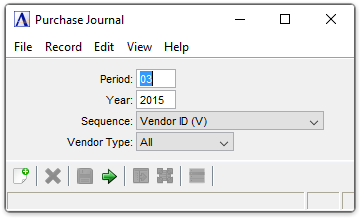
Purchase Journal
About the Fields
In the Period field...
-
Enter the desired accounting period for the report. The current period will be the default value.
In the Year field...
-
Enter the desired accounting year for the report. The current year will be the default value.
From the Sequence dropdown...
-
Select Alternate Sequence (A) from the Sequence drop down box to create the journal by vendor alphabetically.
-
Select Distribution Account (D) from the Sequence drop down box to create the report by distribution account sequence (only if G/L is installed).
-
Select Vendor ID (V) from the Sequence drop down box to create the report by vendor number sequence. Vendor ID will be the default selection.
The contents of the report are the same regardless of the sequence selected.
NOTE:
Printing the report in Distribution Sequence (D) causes the task to first sort the records in the file. The amount of time the sort consumes depends on the number of records in the file.
From the Vendor Type dropdown...
-
Select All to include all vendor types.
-
Select Permanent to include only permanent type vendors.
-
Select Temporary to include only temporary type vendors.
When finished making selections...
-
Click
 to create the Purchase Journal.
 -
Click
 to clear entries and begin again.
 -
Click
 to return to the Period End Processing Menu without creating the report.
When Multiple AP Types is checked for AP Parameters, the report is grouped and subtotaled by accounts payable type. The Purchase Journal appears in the Document Output Display window.
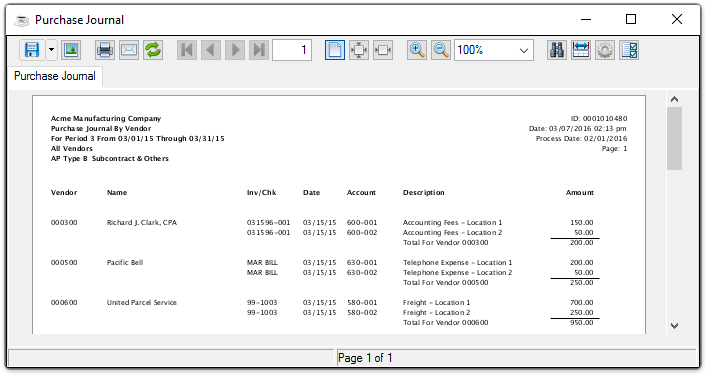
Sample Purchase Journal
See Output Options.
If General Ledger is installed and the GL Posting Parameter is checked, a second Document Output Display window displays. This GL recap lists general ledger postings, in account number order, created during the Purchase Journal. If the GL Recap report detects any other errors, an error message appears.
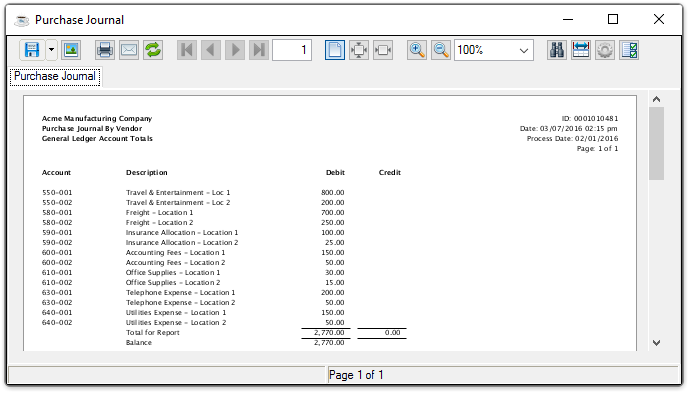
Sample Purchase Journal - GL Account Totals
See Output Options.